Micromelon Robotics
Platform
Resources
NewsAbout UsDownload
Support
Build Your Kit

Stay in the loop

New activities, teaching guides, and product updates delivered to your inbox.

Micromelon Robotics

Australian-made educational robotics for the next generation of innovators.

contact@micromelon.com.au

Company

  • About Us
  • Privacy Policy
  • Terms and Conditions

Products

  • Micromelon Rover
  • Code Editor
  • Robot Simulator
  • Junior
  • Python Library

Support

  • Resources
  • News
  • Rover Repairs
  • Contact
  • Build Your Kit

© 2026 Micromelon Robotics Pty Ltd. All rights reserved.

ABN 56 623 302 296

Code Editor

Python and Blocks
in Harmony

One classroom-ready editor that bridges drag-and-drop blocks and real Python. Students can switch between the two, or watch them translate live, side by side.

DownloadGetting Started
Live two-way translation

Two Languages, One Workspace

Drag a block, see the Python. Edit the Python, see the blocks update. No copy-paste, no mode-switching, no losing your place. The same program shown two ways, kept in sync as you build.

BBlocks

Beginner-friendly drag-and-drop. Students focus on logic without fighting syntax.

PyPython

Real Python, syntax highlighting and all. The same code students will see in industry.

Drop a block, the Python writes itself. Type Python, the blocks rearrange to match.

Three Ways to Code

Students can work the way that suits them best, and teachers can set the view for the whole class.
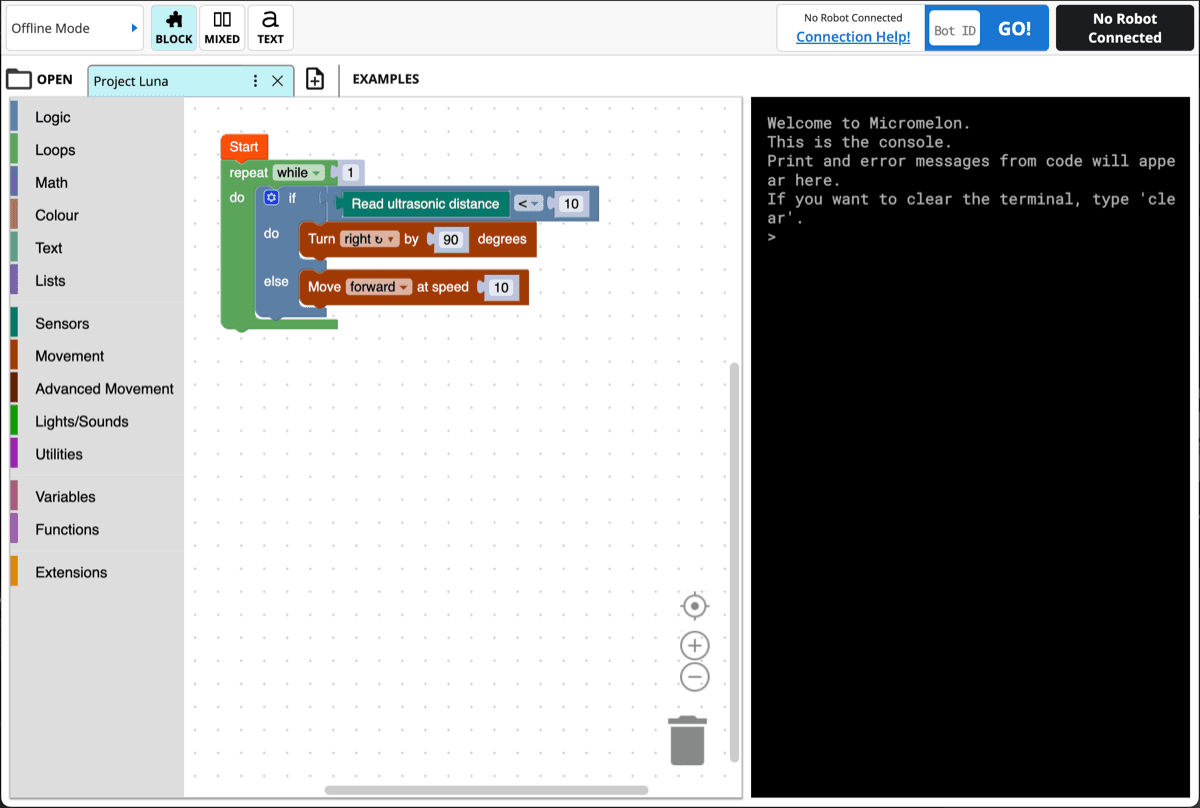
Block-based coding view with drag and drop blocks

Block Mode

Drag and drop code blocks from categorised menus. Great for beginners learning programming concepts without syntax worries.
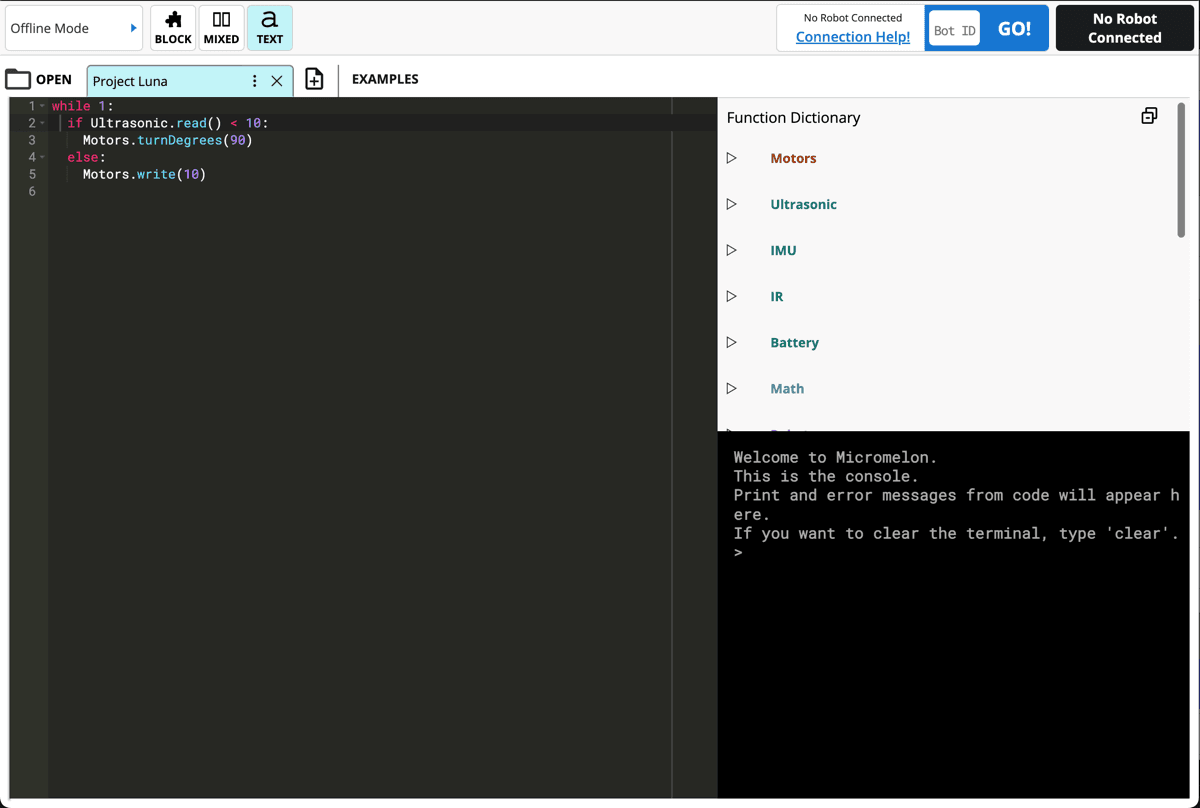
Text-based Python coding with syntax highlighting and Function Dictionary

Text Mode

Write Python code directly with syntax highlighting, a built-in function dictionary, and a live console for debugging.
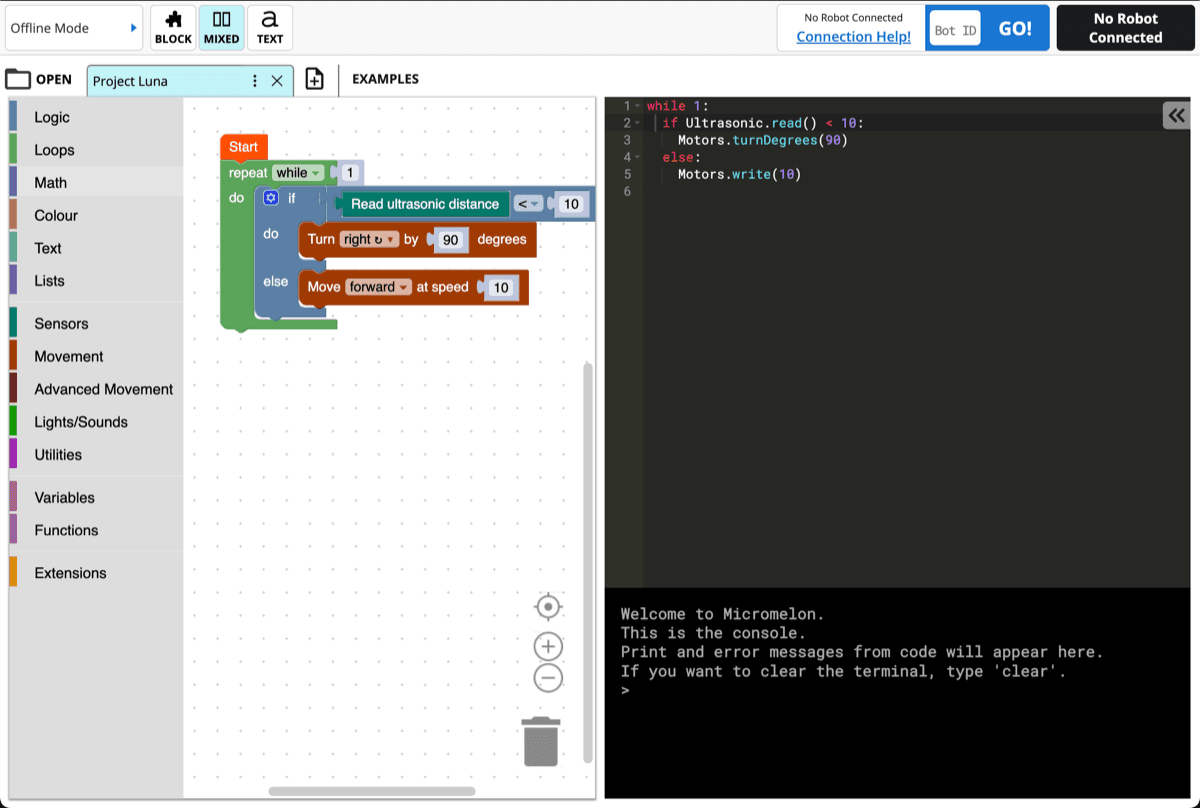
Mixed mode showing blocks and text side by side

Mixed Mode

See blocks and text side-by-side with real-time translation between them. Watch how blocks become Python code as you build.

Real-Time Code Highlighting

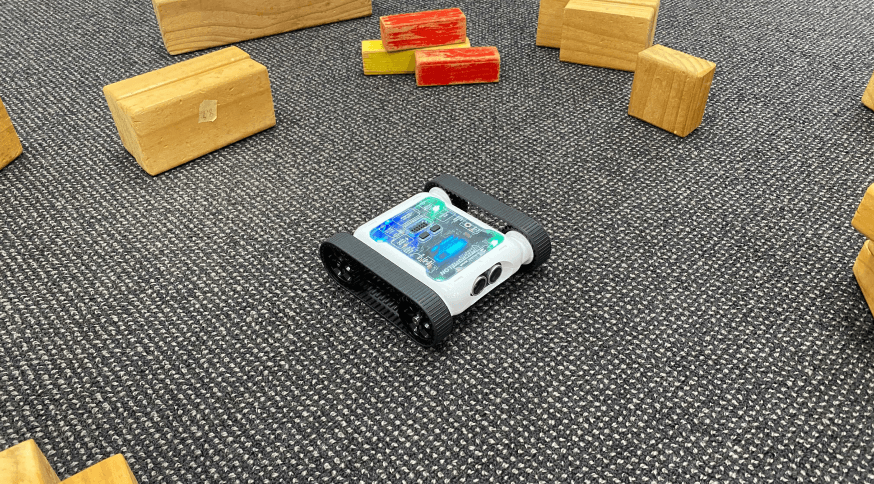
Watch the rover execute your code line by line. Both the block and text views highlight in real time so students can see exactly what their code is doing and debug issues quickly.
  • Blocks and text highlight simultaneously as code runs
  • Built-in Function Dictionary for quick reference
  • Console output for print statements and error messages
Works with

Real Robot or Simulator,
Same Code

The same blocks, the same Python, the same lessons. Run on a physical Micromelon Rover or our Robot Simulator without changing a thing.

Explore the RoverTry the Simulator

Classroom Management

The Micromelon Code Editor is designed to make teaching Digital Technologies as easy as possible.
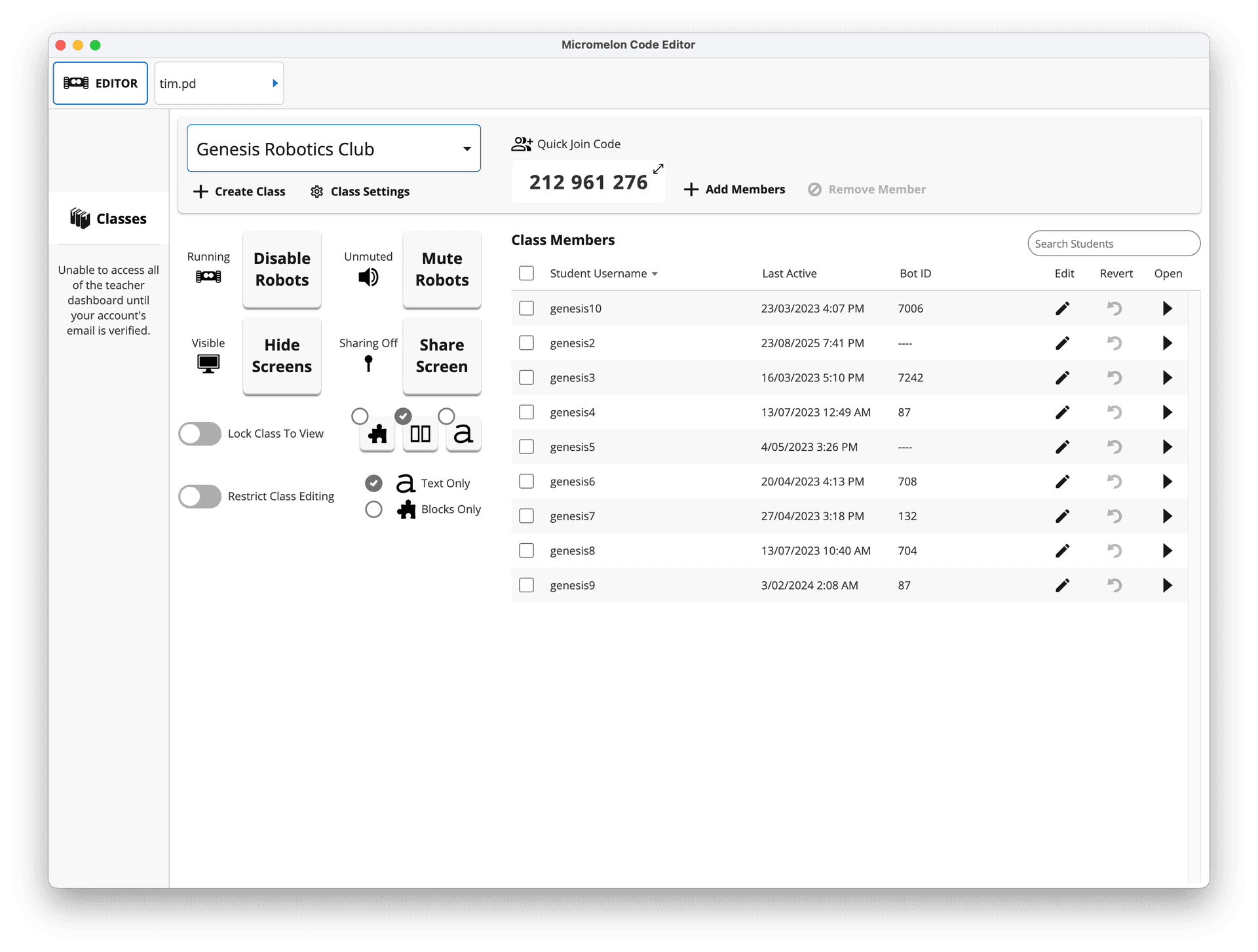
Teacher dashboard with class controls, quick join code, and real-time student list

Full Control of Student Devices

Manage your entire class from a single dashboard. Control what students can see and do, share your screen, and monitor progress in real time.

  • Disable or mute student robots
  • Hide student screens for attention
  • Share your screen with the class
  • View student work any time
  • Quick Join Code for easy class setup

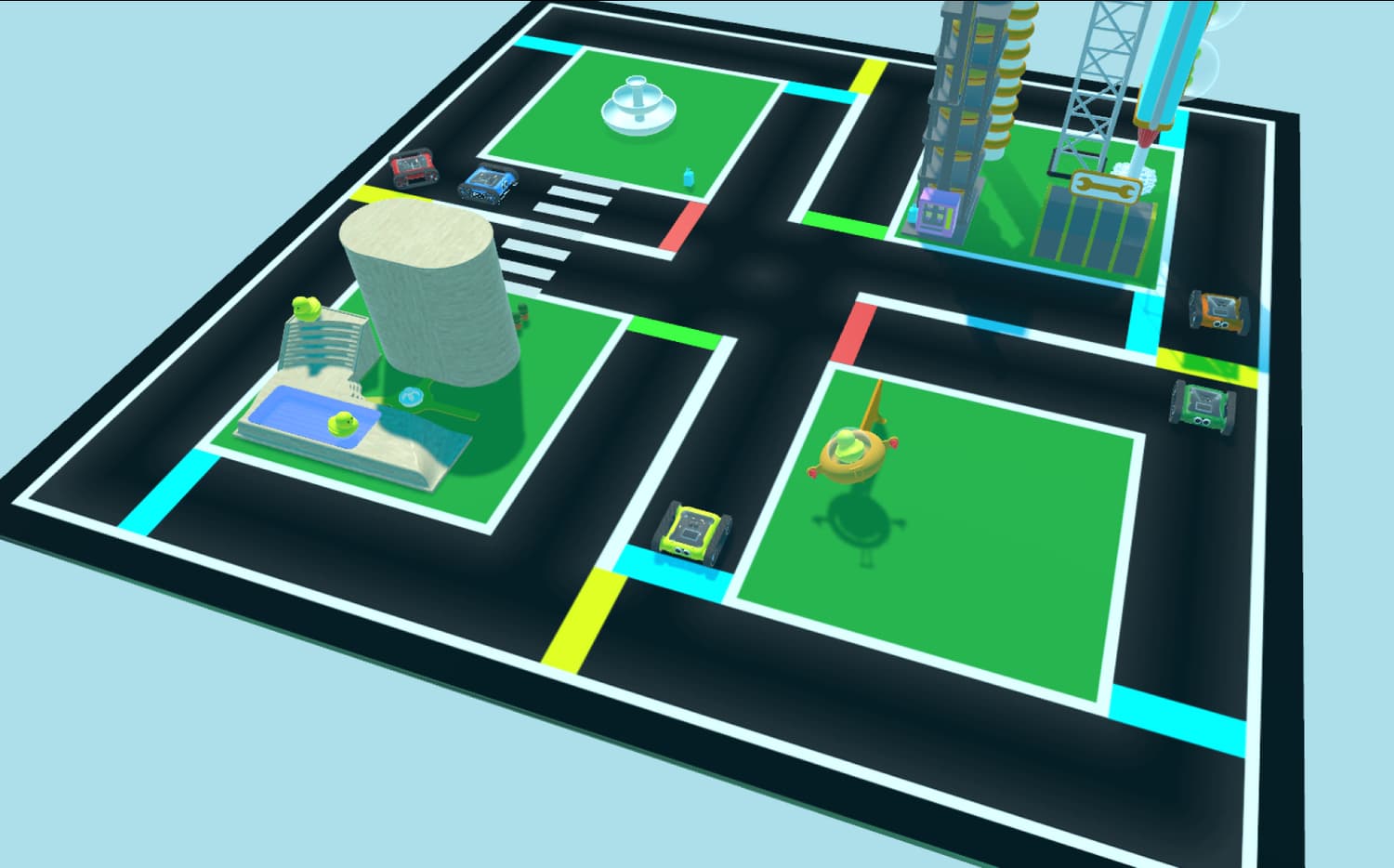
Sensor View

A live dashboard showing all sensor data from the rover in real time. See colour, IR, ultrasonic, and gyro readings as they change.
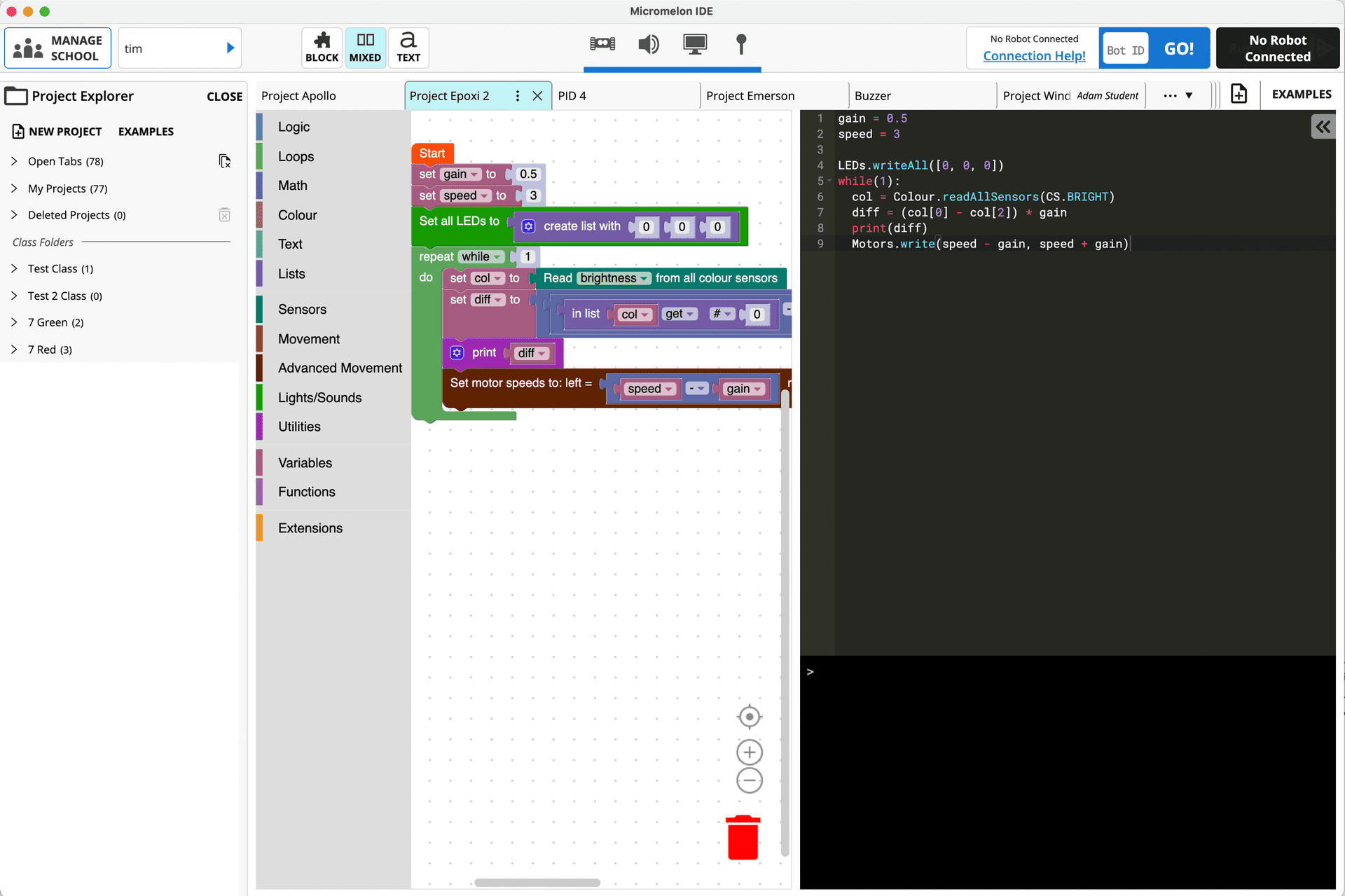
Project Explorer showing saved student projects

Project Explorer

Students can save and manage multiple projects. Pick up where you left off from any computer with the Code Editor installed.
Micromelon Python library used in VS Code

Python Library

Advanced students can move beyond the Code Editor and control their rover from any Python environment, including VS Code and PyCharm, using the Micromelon Python library.
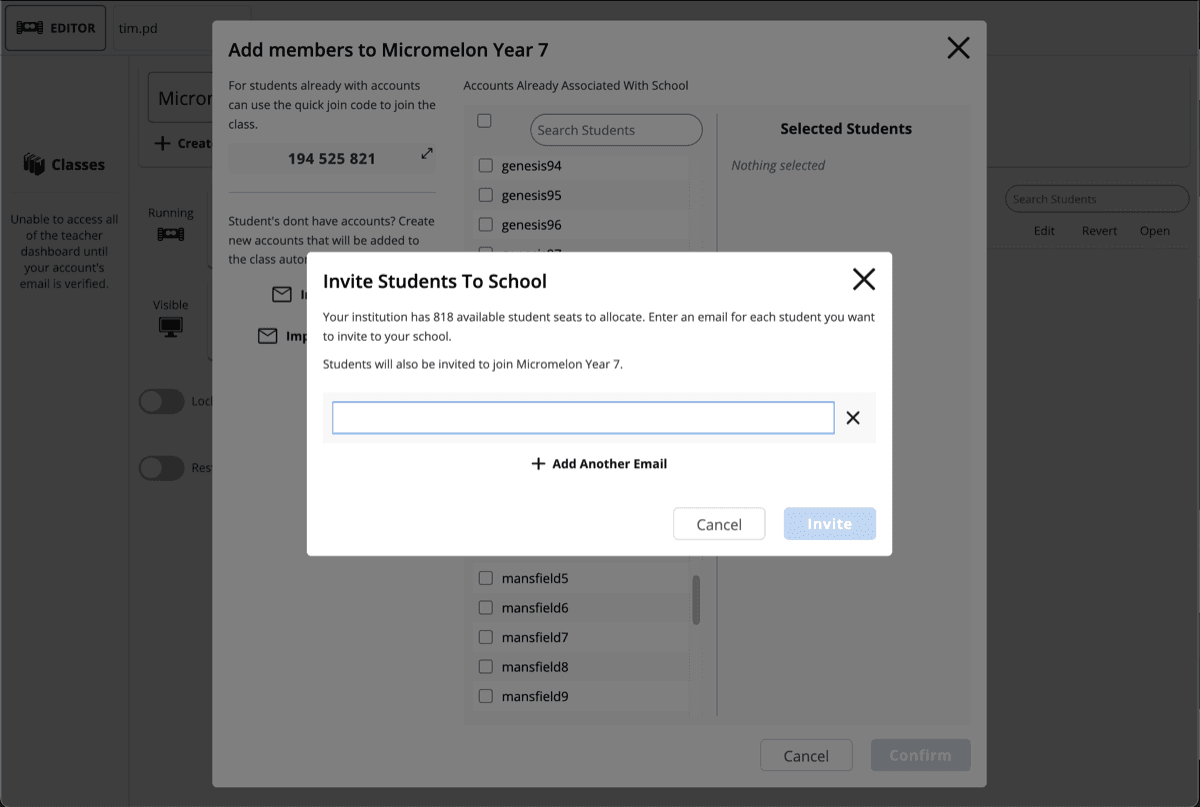
Adding students to a class and inviting them via email

Login with Microsoft, Google or Create Accounts

Students can sign in with their school Microsoft or Google account, or teachers can create simple username-only accounts with no personal information required.

From Blocks to Python

Students start with simplified blocks in Junior, progress to the Code Editor's block and text modes, then advance to professional Python.

Step 1

Junior

Simplified blocks

→

Step 2

Code Editor

Blocks, mixed & Python

→

Step 3

Python

VS Code & beyond

Want To Start Coding Without A Rover?

Try the Robot Simulator to get started with coding right away, no hardware needed.

Try the SimulatorDownload

Tech Specs

Everything you need to run the Code Editor in your classroom, on the devices you already have.

Platforms

Windows
Windows 10 build 1703 or later, 64-bit
macOS
macOS 10.10 (Yosemite) or later
iPad
iPadOS 13 or later
Same Code Everywhere
Projects open and run identically across all platforms

Hardware

2 GB RAM
Minimum memory to run smoothly alongside a browser
Bluetooth 4.0 LE
Built-in or USB adapter required to connect rovers

Coding Modes

Block
Drag-and-drop visual coding for beginners
Text
Real Python with syntax highlighting and live console
Mixed
Blocks and Python side by side, kept in sync

Sign-In Options

Microsoft
Sign in with school Microsoft 365 accounts
Google
Sign in with Google Workspace for Education
Email Sign-Up
Create accounts with just an email address
Quick Join Code
Students join a class in seconds with a 4-digit code