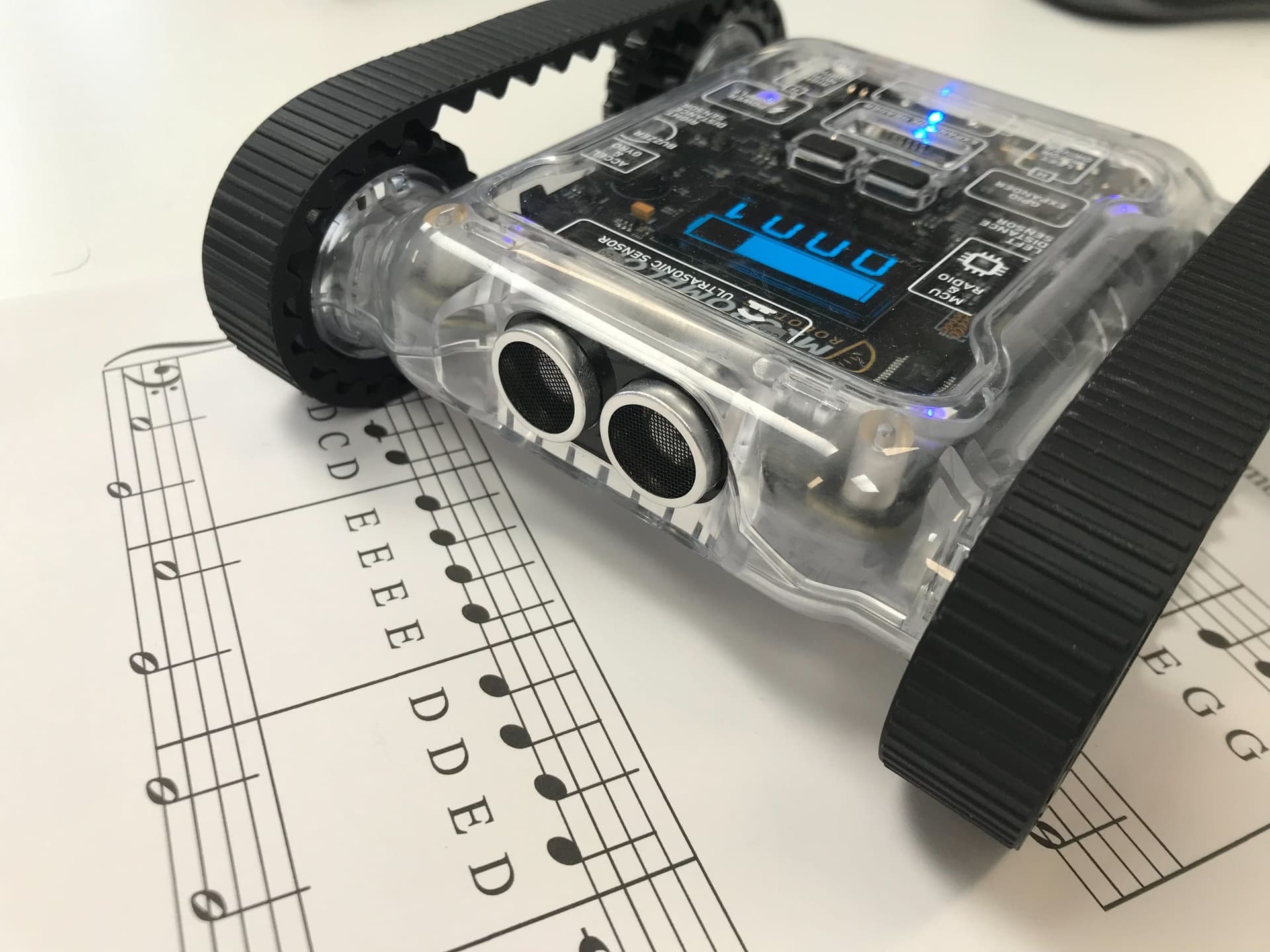
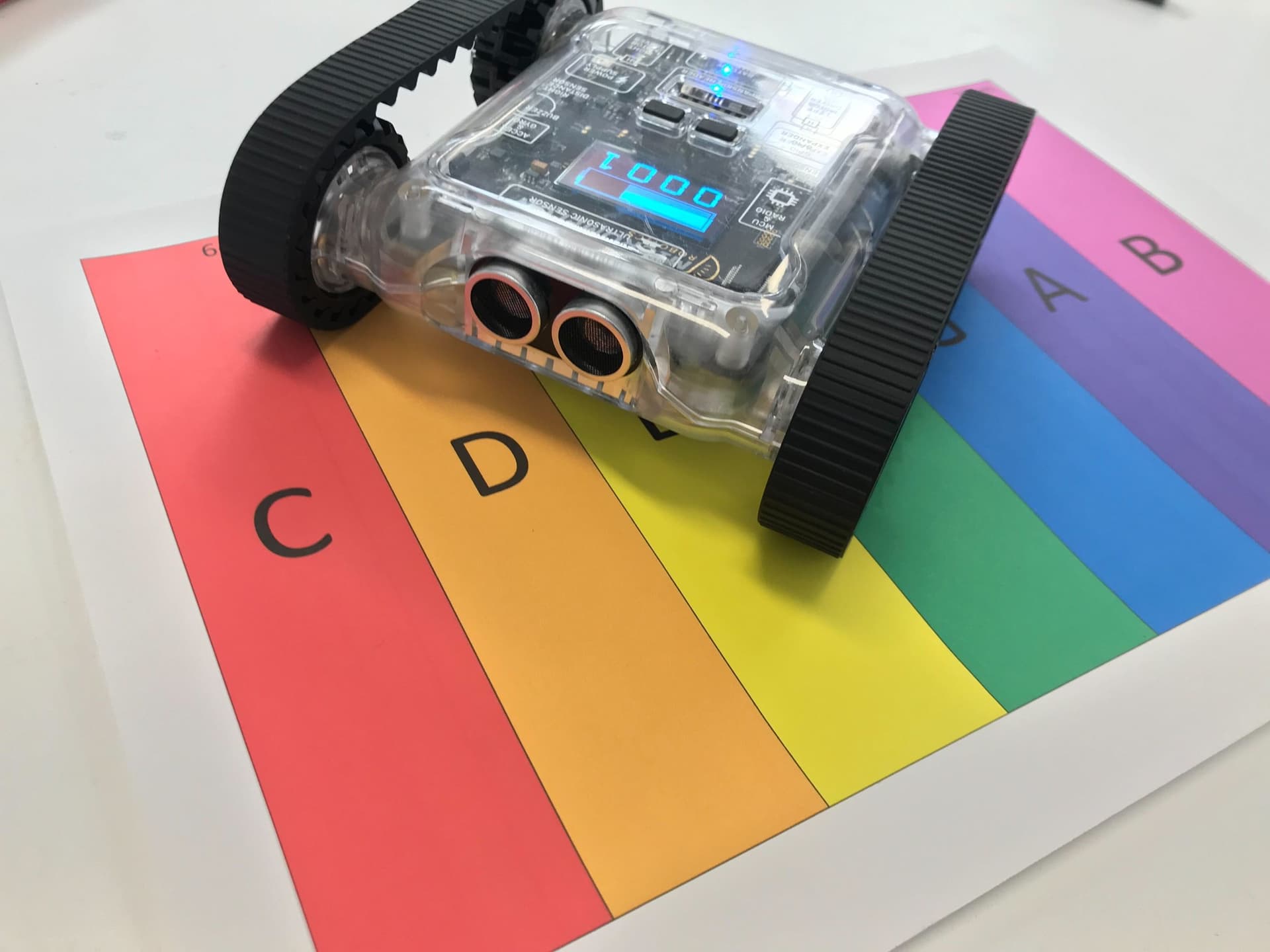
Create a program that translates data from the colour sensors into LED output and sound. When you move your Rover over new colours, the LEDs match the surface colour and the buzzer plays a tone unique to that colour.
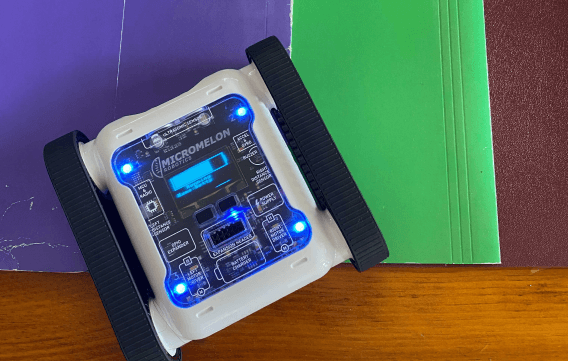
Rover playing colour-driven sounds
Setup
This exercise requires access to many different coloured surfaces or cards. Lay them out on the floor in different orders and have the Rover drive across them to play different tunes. To make the music sound good, you’ll have to do some more complex calculations from the hue value to frequency, try looking up the frequencies of musical notes.
Our Approach
Stage 1: Match LEDs to the Colour
We want to set all the LEDs to the colour the sensor is detecting. The Set LED blocks use an RGB value, but the colour sensor blocks don’t return values in RGB. We need a way to translate the sensor value to an RGB value. One value we can read from the colour sensor block is hue, so use a Hue Colour block from the Colour category and place that inside the Set All LEDs block.
Stage 2: Play a Sound from the Colour
The hue value is a single number. The buzzer can play a sound at a specific frequency (in Hz), which is just a number of vibrations per second. Place the hue value directly inside a Play Sound at Hz block, and multiply it with a math block to make the sound more pronounced. Try adjusting the calculation to produce better music.
Stage 3: Loop Forever
Wrap the behaviour in a While True loop so it repeats indefinitely. Once it’s running, you can pick up and move the Rover over new colours around you and it will keep playing sound.

Example code, colour to LEDs and buzzer in a forever loop
Try experimenting with different colour arrangements and multiplier values to create your own tunes.