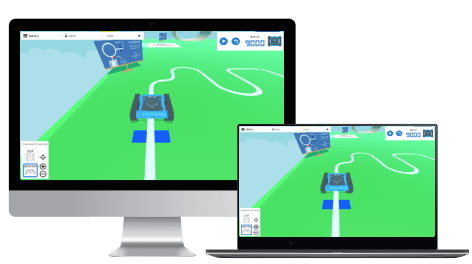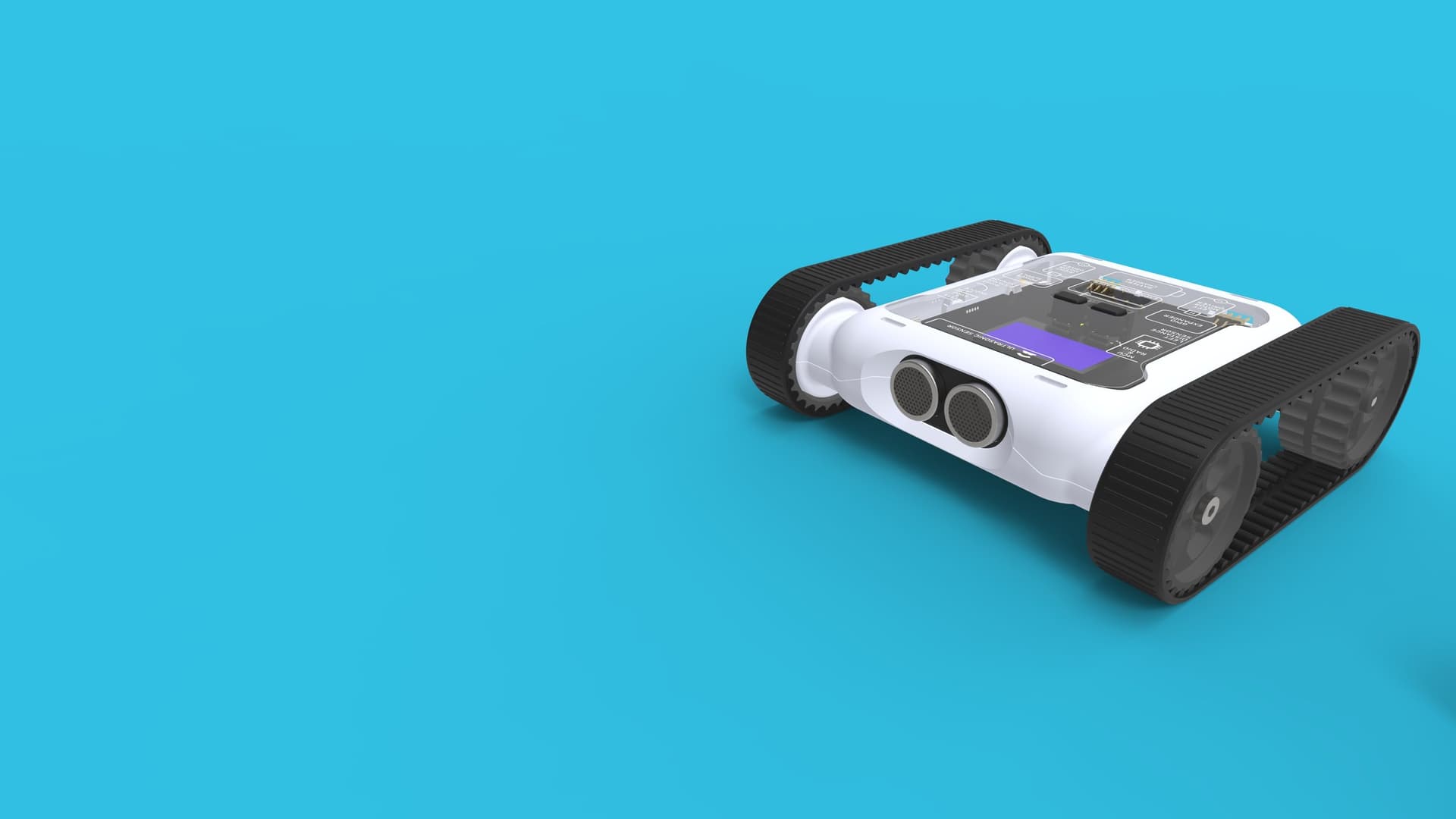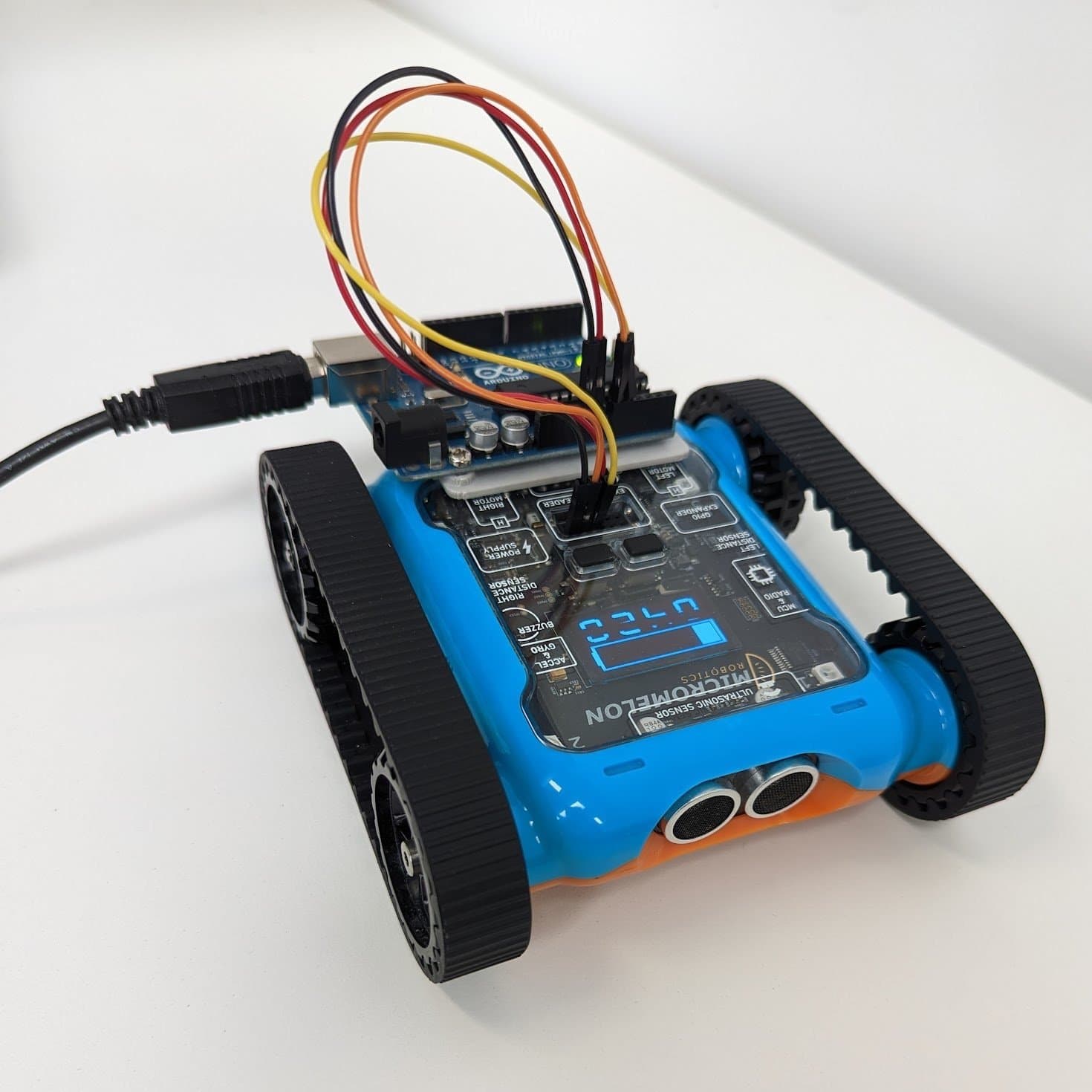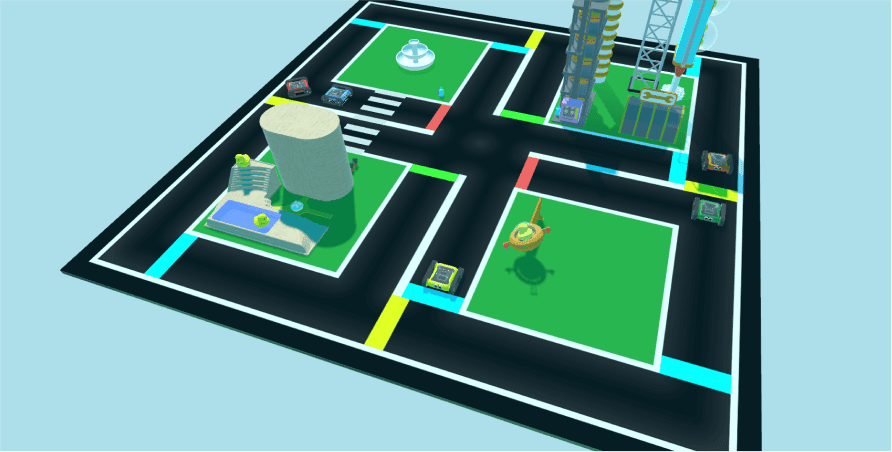
The Micromelon Robot Simulator is a virtual environment filled with activities you can complete without needing a physical Rover. There are a large range of simulated activities with varying complexity. Completing them all will require the use of all available sensors and advanced coding techniques.
Simulator Exercise: Driving School
What You Need To Get Started
- Some activities require a Simulator Licence, which is attached to your Micromelon account (the same account used in the Code Editor).
- New Micromelon accounts get a 30 day free trial for the Micromelon Simulator. If your Free Trial has ended contact us for a quote.
Get in TouchSend us a message and we will get back to you within 1 business day.
- The Robot Simulator is a virtual simulation of a real Micromelon Rover, so you control it with the same Code Editor used for the physical Rover.
- The Code Editor is free and supports drag-and-drop blocks alongside Python.
Selecting an Activity
Browsing the activity list
- When you first open the Robot Simulator, you'll see a list of all available activities on the left.
- Spike Drop and Free Space are great first activities.
- If you're starting to become familiar with programming the Rover, try Prison Escape or Line Following.
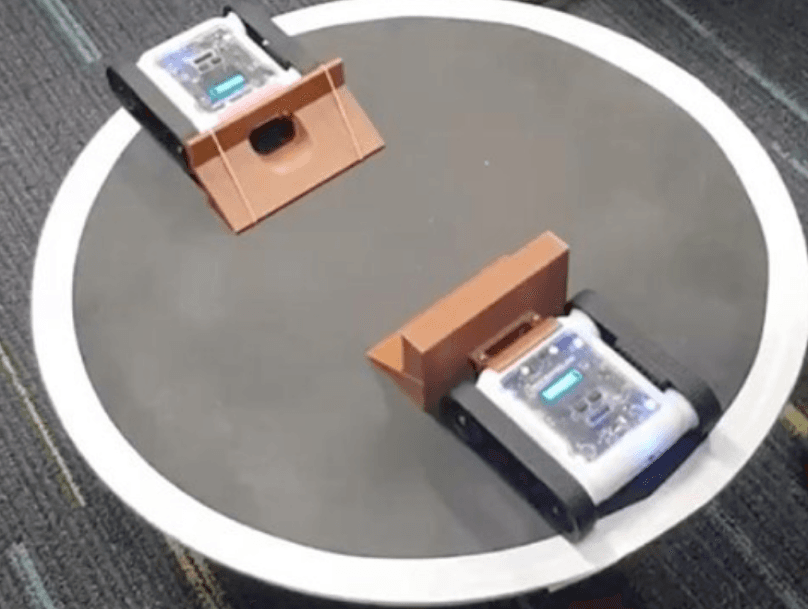
- Once you're feeling more confident, Maze and Sumo provide a stronger challenge.

Login required message
- Some activities require a Robot Simulator Licence attached to your Micromelon account.
- Press the LOGIN button and either enter your username and password, or log in automatically from the Code Editor.
- To log in from the Code Editor, enter the Bot ID 9000 and click GO!.
Doing an Activity
Returning to the activity menu
- Click the activity you want to try. Details appear on the right; some activities (like Sumo and Maze) have customisation options.
- Press PLAY to begin.
- To return to the menu, press the MENU button in the top right or CHOOSE EXERCISE.
Opening the help dialog
- If you're not sure what to do, open the activity help dialog by selecting HELP in the menu.
- Each activity includes instructions and tips to get you started.
Running code on the simulator
- The simulated Rover works exactly like a physical Rover, you program it the same way.
- If you're not already connected, enter 9000 into the Bot ID input in the Code Editor.
- Write your code, then press the play button on the Code Editor.
- You can also run and stop your code from the simulator's Rover control panel in the top right.
Toggling auto-reset on play
- By default, the Rover returns to the starting point each time you run code, so you don't need to reset manually.
- You can toggle this behaviour from the menu.
- To reset at any time, press the reset button on the simulator Rover control panel in the top right.
Camera and Sensor Tools
Camera controls
- Use the camera controls in the bottom left to get a different view of the activity.
Enabling keyboard controls
- Simulator Rovers can be driven with the keyboard arrow keys.
- From the menu, click the Enable Keyboard Controls toggle to turn this on.
Sensor view in the Code Editor
- Use Sensor View in the Code Editor to see live readings from the simulated Rover, just like a physical Rover.
- Watching the sensors at different points in an activity helps you write better solutions.
- Note: battery sensor readings aren't relevant in the simulator.
There are many activities to try in the simulator and most have an associated guide that includes steps towards an example solution. You can try progressively more difficult challenges using the guides written for the physical Rover. Good luck!