When it comes to 3D printing, there are a hundred and one things that can go wrong with a print, minor details requiring small adjustments, all the way to errors that cause a print to fail completely. This guide walks through how to identify common printing errors and how to fix them.
Note: The solutions listed for each issue are the most common fixes. There are other solutions that work for many of these problems that aren’t included here.
Bed Adhesion
If a print doesn’t stick uniformly to the build plate, it may have a non-uniform first layer, lift in areas, or even completely come off the bed.

Bed-adhesion failure, print lifting from the build plate
Bed Levelling
Bed levelling refers to tuning the distance of the nozzle from the bed when printing the first layer. This height must be calibrated correctly for your printer. For more on bed levelling, see the maintenance guide.

Build Surface
Even with a perfectly calibrated bed level, you may come across the issue that the filament peels off the bed. This can happen because of the material and texture of the build plate.

Lining the bed with painter’s tape
- Clean the bed: dust and residue from previous prints can cause a first layer to lift. Spray the bed with isopropyl alcohol and wipe it down.
- Use adhesives: for glass build surfaces, spread a washable adhesive such as glue stick or clear hairspray on the surface while it’s hot. This sticks the print to the build surface and ensures it doesn’t peel. Reapply every few prints, and clean the residue off the bed every now and then.
- Painter’s tape: cover the bed with a layer of painter’s tape before each print. The print sticks to the tape, which sticks well to the build surface.
First Layer Helpers
A technique to improve bed adhesion through the slicer is to use a skirt, brim, or raft.

Skirt, brim, and raft (left to right)
- Skirt: prints a few lines around the print (unconnected). Helps prime the nozzle and ensure uniform flow before starting on the print itself.
- Brim: like a skirt, but connected to the outer perimeter of the print. Helps stick the outermost perimeter to the bed.
- Raft: three or more layers printed first on the bed, with the print itself printed on top of the raft. Creates a whole new surface for the print to adhere to.
Layer Shifting
Layer shifting is when the entire print shifts to one side and continues printing. It can occasionally happen due to a motor issue, but most of the time it’s caused by belt tension or an unsecured build plate.
Belt Tension

Printer drive belts
Most 3D printers have belts to move the gantry or build plate around. When a belt isn’t at the correct tension, prints come out warped, and if the belt skips, layer shifting will occur. To tension belts correctly, see the maintenance guide.
Build Plate Securing

Binder clips holding the build plate to the bed
Sometimes the cause is simple, the build plate isn’t secured properly. When the build plate slips, the printer keeps printing in the same location while the entire print has shifted to the side. Some printers benefit from binder clips holding the build plate to the bed. Make sure the clips don’t get in the way of the head while it’s operating.
Under-Extrusion
Under-extrusion is when not enough material is coming out of the nozzle. Holes may appear in the print, resulting in a weak structure. Some causes can result in the printer not extruding at all.

Under-extrusion, visible gaps in the side wall
Extruder Nozzle
The extruder nozzle is the culprit of many under-extrusion issues. Most extruder nozzles are made of brass and wear out over time or clog. The easiest fix is to replace the nozzle, but there are techniques to remove a clog:
Use a needle. Heat the printer up, remove the filament, then insert a dedicated 3D printer nozzle needle from below. Do this a few times to clean blockages from the nozzle.
Cold pull. If the needle technique doesn’t work, try a cold pull, flushing out the hot end with a small length of filament:
- Heat the nozzle to printing temperature (of the last printed material) and remove any filament (and the PTFE tube if your printer is a Bowden setup).
- Once the nozzle is hot, insert a length of filament into the hot end (extending out the printer for you to grab) until you feel resistance. Push it in a little tighter.
- Set the nozzle temperature to half the print temperature and wait for it to cool. Once cool, slowly pull the filament out, debris and blockages may come out with it.
- If the hot end isn’t clear, repeat from step 2 until satisfactory.
Filament Temperature
There are many different materials used in 3D printing, and each has different properties. Make sure the nozzle temperature is hot enough to melt the material you’re working with. Even so, depending on your roll and printer, custom temperatures may be required. A good strategy is to select a small test file and print it repeatedly while increasing the temperature in 5 °C increments. Note which temperature looks best and use those settings.
Filament Quality
Filament absorbs moisture and dust from the air, which can compromise the quality of the material. This causes weak prints, irregular extrusion, and even fully clogged nozzles. Filament that has absorbed moisture tends to be brittle, and sometimes makes a crackling sound when melted in the hot end. Quality can be restored using a filament dryer. If one isn’t accessible, a modified food dehydrator or even an oven can be used. Below are two prints from the same roll on the same printer, the only difference being that the filament was dried in a food dehydrator before printing the part on the right:
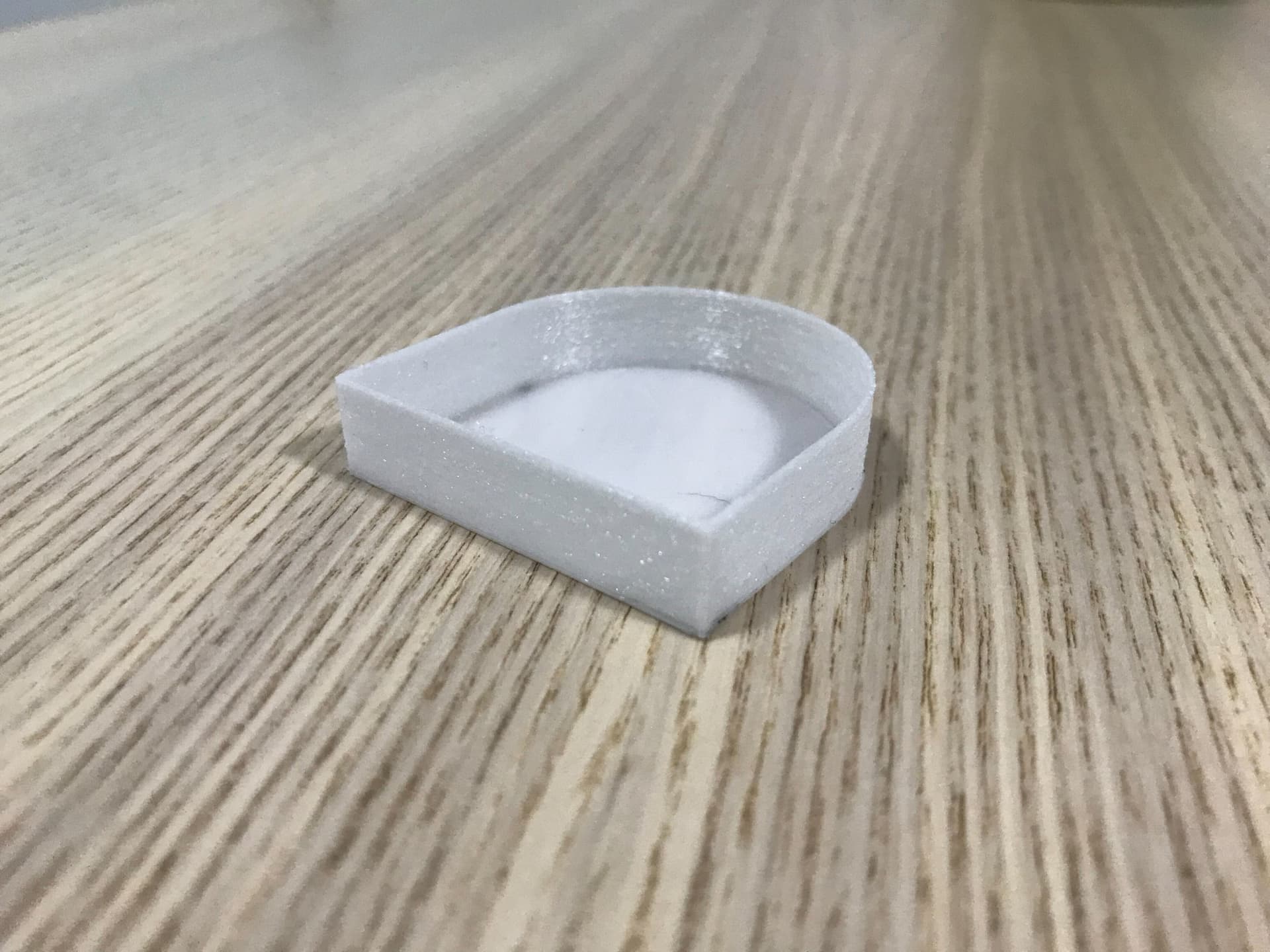
Before drying
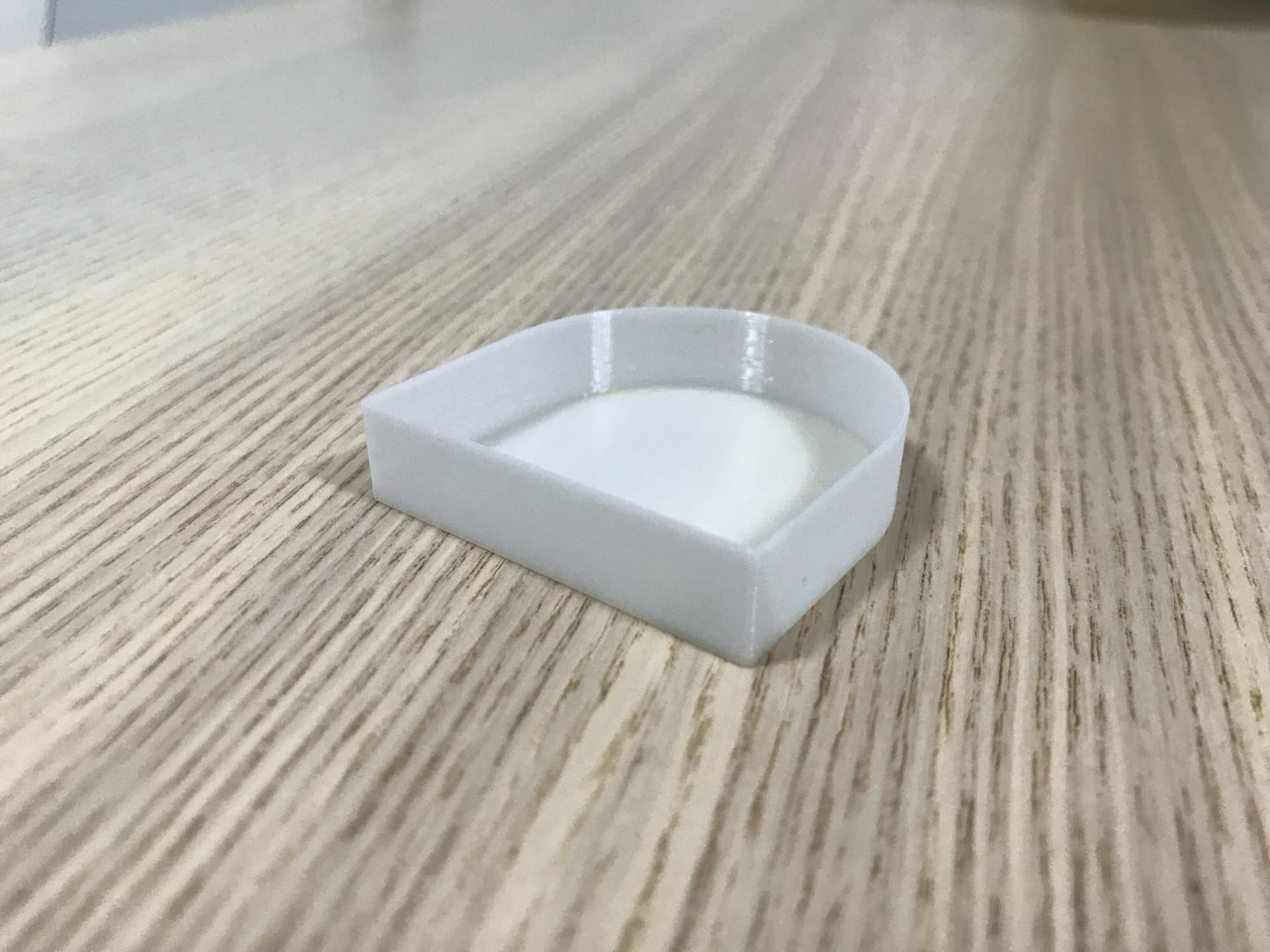
After drying
To prevent exposing filament to dust and moisture, store rolls in an airtight bag away from sunlight. Desiccants and vacuum sealing can be used for an even safer storage technique.
Overhangs and Cooling

Curling overhangs caused by poor cooling
Cooling
The basic concept of FDM printers is to extrude molten filament and cool it the instant it leaves the nozzle. Good cooling allows the printer to print over large gaps without a problem and prevents corners from curling (which happens when the filament cools slowly). With PLA, good cooling is vital.
To improve overhangs and cooling, ensure the cooling fan speed is set to maximum and is on for all layers (you may want to exclude the first few). Depending on your printer, you may upgrade the print head to have more and larger cooling fans, tutorials for popular printers can be found all over the internet.
As a band-aid fix, the print can be cooled externally with a pedestal fan aimed at the print. This isn’t recommended (it may lead to warping), but on occasion better overhangs can be achieved this way.
Supports
Sometimes overhangs can’t be achieved even with perfect cooling, supports become essential. Removing supports can be a long, annoying process; here are some slicer settings we’ve found make supports easier to remove:
- Z contact distance: the distance between the top of a support and your part. About 0.2 mm stops the support from bonding to the part.
- Support interface: gives the support a sort of roof. The roof stops the support from bonding to the part, so make sure to enable this option.
- XY distance from support: how close a support can be to a part wall. About 60% of the printing perimeter width should stop supports from sticking to walls.
There are many other support settings to play around with, but these are the most important.

Print with tree-style supports (Credit: vmsaSTEM)
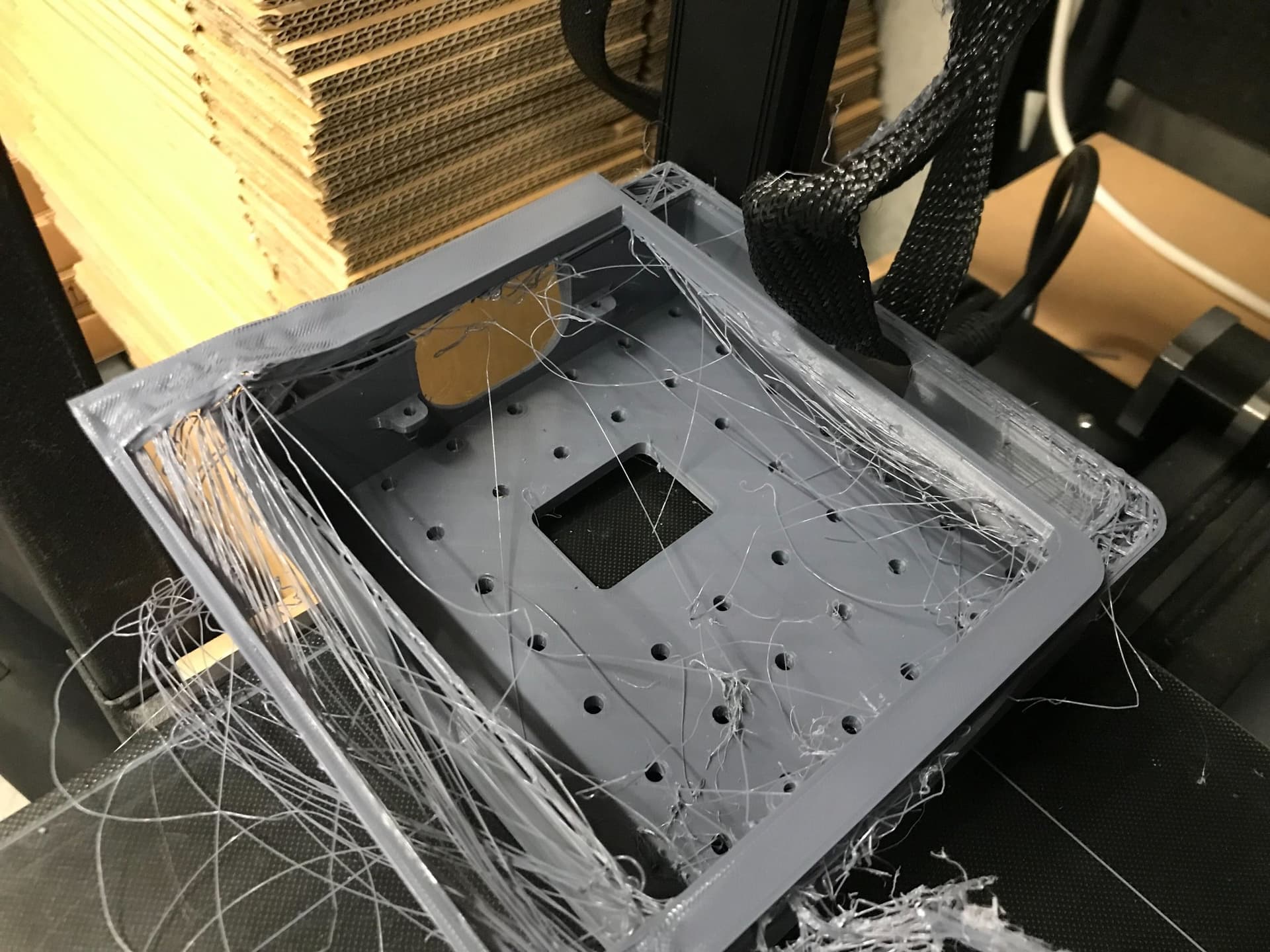
Stringing

Stringing between print walls
Stringing occurs when the printer isn’t extruding, but molten filament in the nozzle oozes out as the printer travels around. Thin strings get drawn between walls, lowering the quality of the final part.
Temperature
The most common cause of stringing is temperature. The hotter the filament is printed, the runnier it is when liquid. To prevent stringing, stay within the printing temperatures for the filament but as low as possible. Each roll is different, print the same test repeatedly while changing the temperature by 5 °C each time.
A faster way to find the ideal temperature is to use a temperature tower: a single tall print where each section is printed at a different temperature.

Temperature tower in PrusaSlicer
- Download files for a temperature tower and import them into your slicer. The Simplify3D temperature tower works well, see Thingiverse: Simplify3D Temperature Tower.
- Use advanced settings in your slicer to add a temperature change for each platform, start at the coldest recommended temperature for your material and increase in 5 °C increments.

Adding G-code temperature changes per layer
In PrusaSlicer:
- Slice the print.
- Scroll to a platform, right-click on the slicer view, and click Add Custom G-code.
- Enter the
M104 S<temperature>command to set a temperature change at that layer (the example image sets it to 240 °C).

Finished temperature tower (Credit: Simplify3D)
After the print, inspect and see which temperature looks best, and use that for future prints with that filament.
Slicer Settings
Sometimes stringing is unavoidable, but settings can prevent strings from affecting your part:
- Travel only over print / Avoid crossing perimeters: forces the printer to travel only over the part and not through open space when possible. In the example below, dark blue lines indicate the travel of the print head. Without the setting (left), there’s a lot of stringing. With the setting on (right), the chance is much lower.
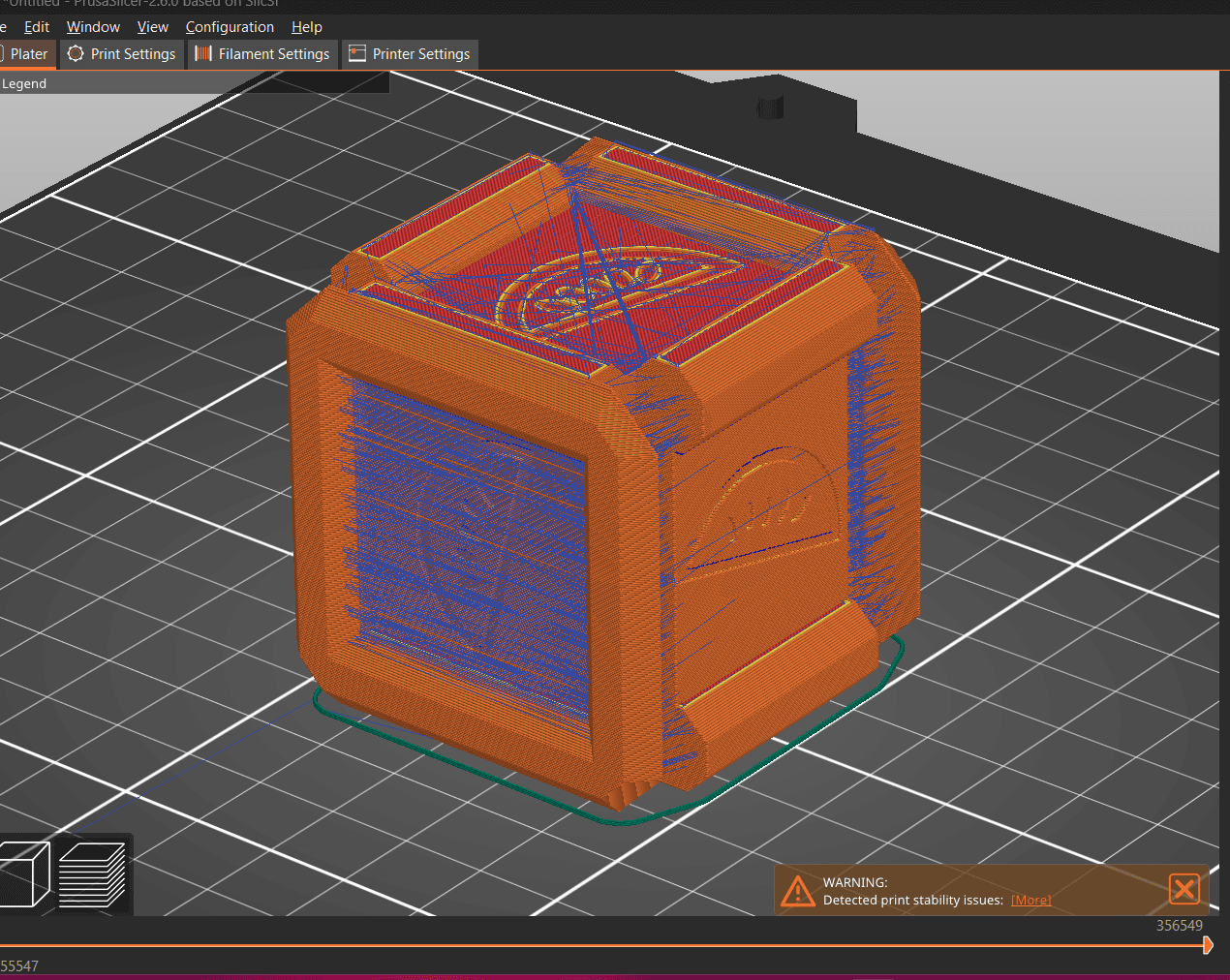
Without avoid crossing perimeters
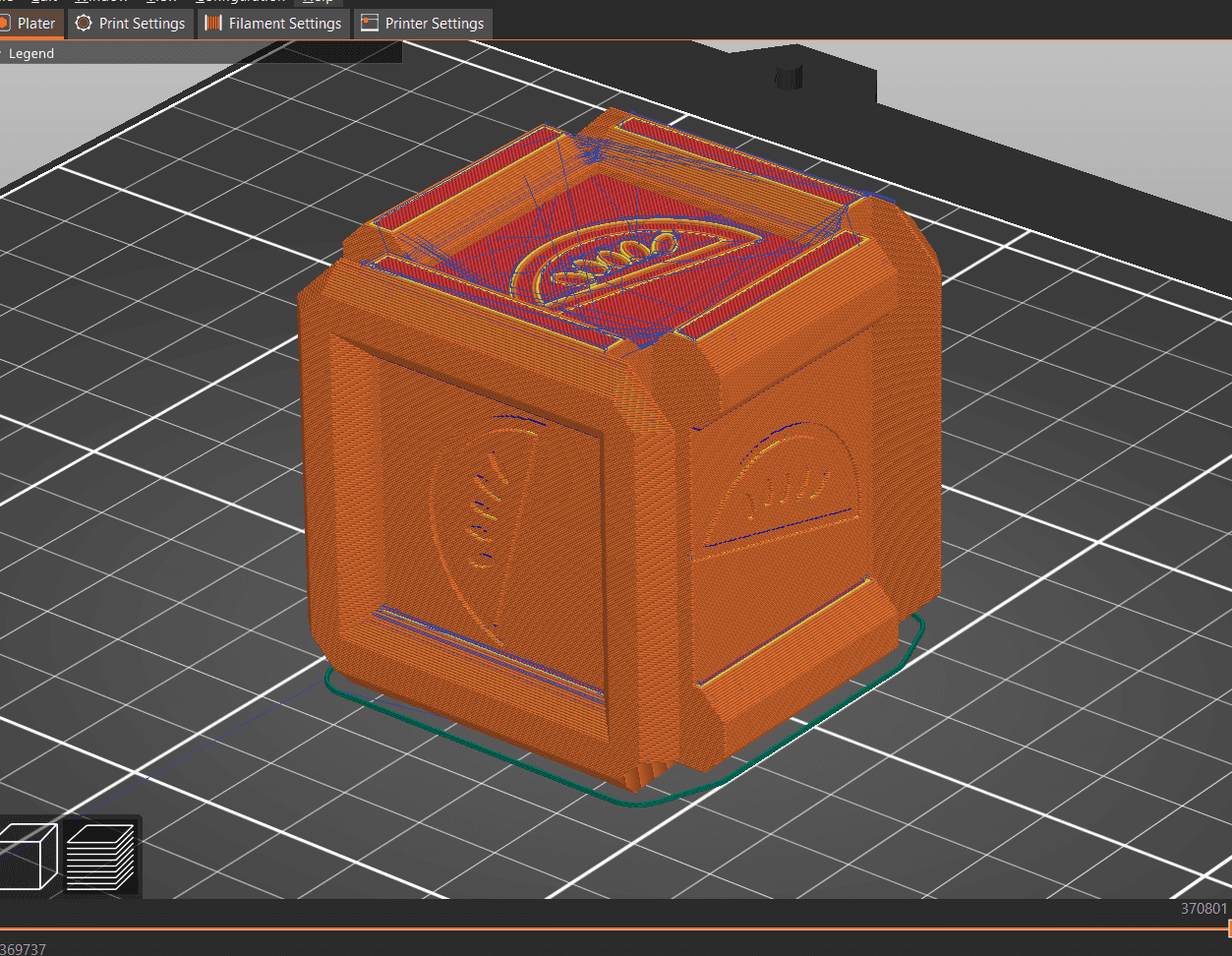
With avoid crossing perimeters
- Retraction: pulls the filament out a bit when not printing. This releases the pressure in the nozzle and reduces leaks. About 4 mm at 60 mm/s is a standard setting.
Print speed and filament quality also play a role in stringing, but the techniques above are the common fixes.
Surface Texture

Rough surface texture from vibrations or loose belts
Vibrations
A rough texture on the outside of a print can be caused by printer vibrations from anywhere in the system, the print head, the printer itself, or even the table or surface the printer is sitting on.
To fix vibrations, observe the printer to see where they’re occurring and take measures to reduce them: tighten loose bolts, calibrate eccentric nuts, or make sure the surface the printer is on is sturdy. A technique to dampen vibrations is to place the printer on a thick foam mat, this may even make your printer a bit quieter.
Belt Tension
Tensioning belts is a crucial part of maintaining 3D printers. It doesn’t have to be done often, but belts must always be at the correct tension. When belts aren’t tensioned correctly, dimensional defects can show up in the print. For tips on getting your belts tensioned correctly, see the maintenance guide below.