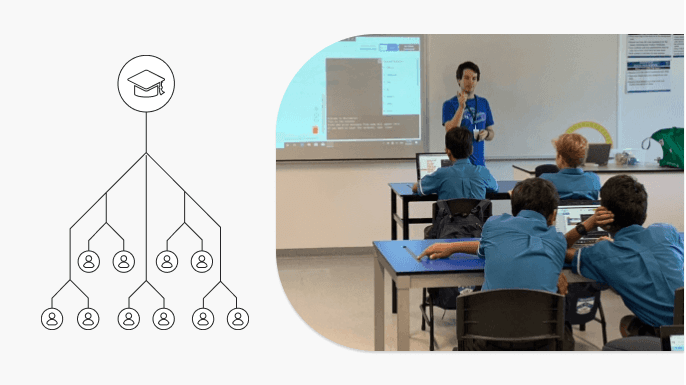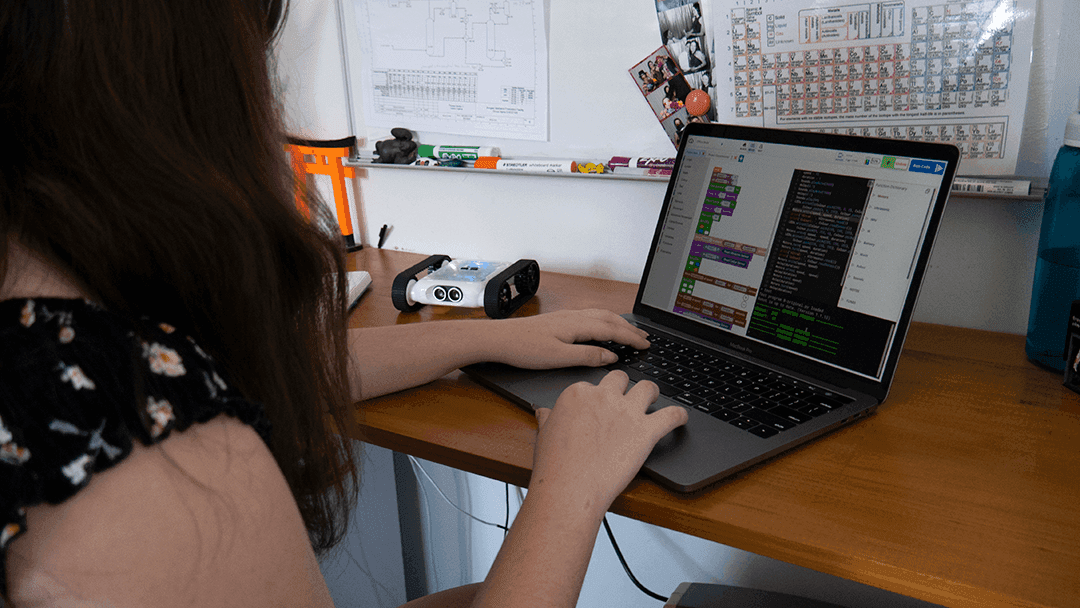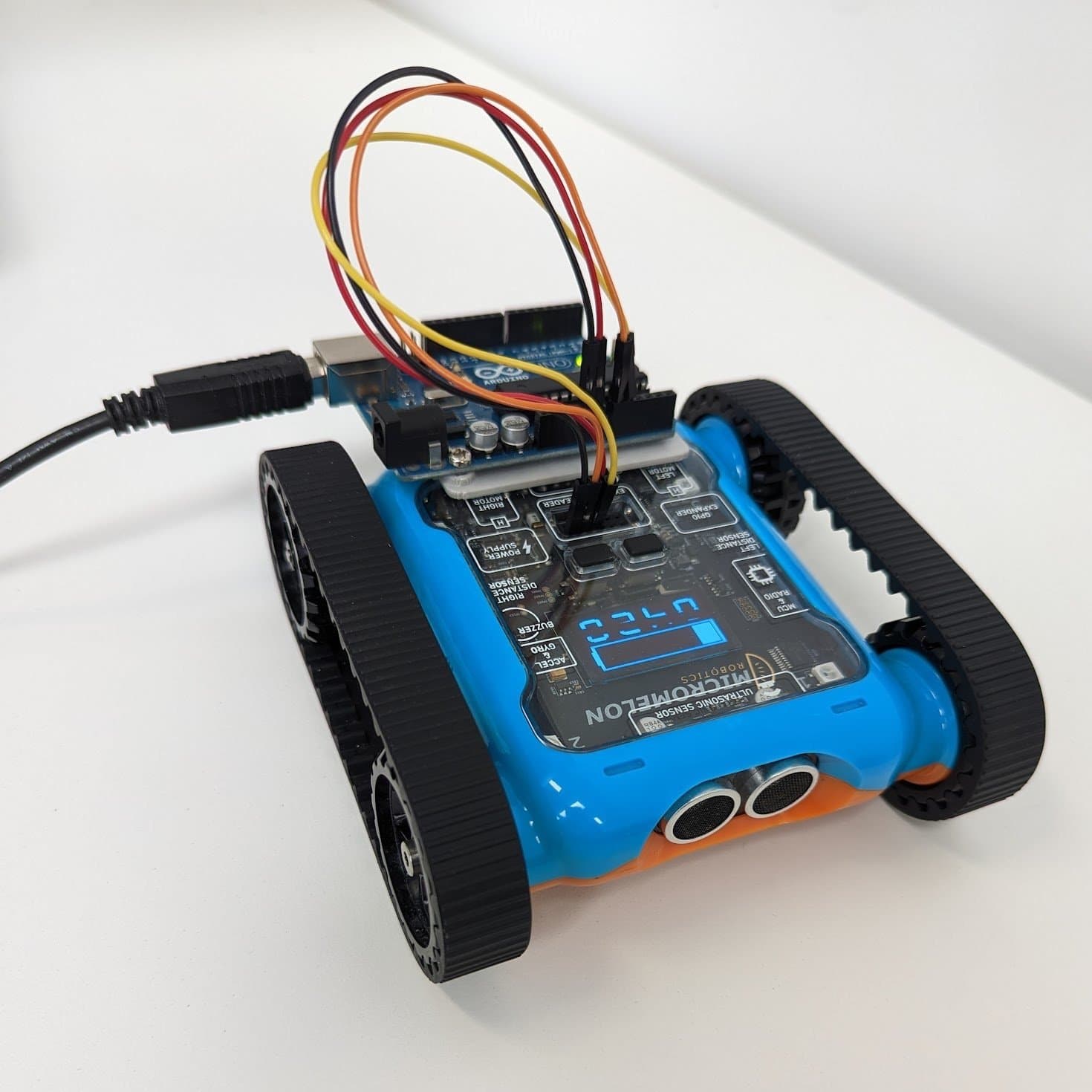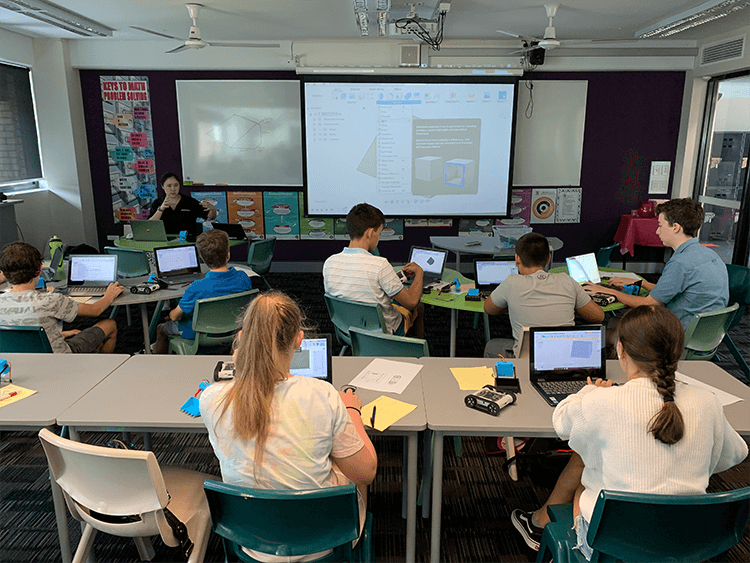
The Micromelon Rover and Code Editor have built-in classroom management features that give teachers more flexibility to organise and run their lessons. This guide explains what each feature does and how to use it.
Opening Class Controls and Selecting Your Class
Opening class controls and selecting a class
Before you can use any class controls, you must select the class to apply them to. When a control is activated, only students in the selected class are affected.
Who can control what?
- Standard teacher accounts can select and control all classes in their school.
- Casual instructor accounts can only control classes they’ve been assigned to.
- Student accounts can never access class controls.
What Class Controls Are Available?
Disabling and Muting Student Rovers
Disabling and muting student Rovers
You can disable or mute all student Rovers in a class.
- Disabled: students can still interact with the Code Editor, but they can’t run any code.
- Muted: Rovers and the Code Editor function normally, but the Rovers won’t produce any sounds requested from student code.
Note: Both controls are toggled on for 5 minutes when first pressed. Press the +5 mins button to extend the time.
Hiding Student Screens
If you need to grab the class’s attention, hide their screens. This covers their Code Editor and stops their Rover if it’s currently running. Only the Code Editor is hidden, students can still see other programs open on their device.
Teacher view: triggering screen hide
Note: Hiding student screens lasts for 5 minutes when first pressed. Use +5 mins to extend.
Sharing Your Screen With the Class
You can broadcast your current Code Editor workspace to the selected class. Students can’t edit your code while it’s being shared.
Broadcasting your Code Editor to the class
Note: By default the screen share is unlocked: students can still select their own projects in the Code Editor. To restrict them to your code only, press the Lock button once the control is active.
Restricting What Students Can See
The Code Editor has simultaneous block and text coding. You can lock students to a specific view (blocks only, code only, or both).
Teacher view: locking the visible view
If they’re locked to mixed view, they can still edit both code types.
Restricting What Students Can Edit
You can also restrict the type of code students are allowed to edit. For example, you can challenge students by only letting them edit text code, they’ll still see the block code (useful for debugging), but they can’t edit the blocks.
Teacher view: restricting edit access
Sending Code To Students
You can send your projects and code to students. They’ll receive a duplicate of the project in their workspace and can edit it, rename it, or delete it as they like. (If you want them to look but not edit, use Sharing Your Screen above.)
Sending a project to students
To send a project:
- Locate the project you want to send in your project tab bar.
- Click the three vertical dots, or right-click the tab, to open the project menu.
- Select Send To Class to send to an entire class, or Send To Student to choose specific students from the school.
Opening Student Work
You can open a folder in your Code Editor that contains all of a student’s projects. The folder updates continuously as the student works.
Opening a student’s work in your Code Editor
Note: You can’t edit or delete a student’s projects from your Code Editor, this is a read-only view.
To open a student’s work:
- From the Teacher Dashboard, go to the Classes tab and select your class.
- Find the target students in the class list. Click the + button next to each student whose work you want to view, their folder opens in your Code Editor.
- Close the Teacher Dashboard. The folder appears in your project tab bar, hover over it to see all projects inside, then click any project to open it.
To remove a folder, press the − button on it.
Individual Student Controls
Most of the controls above apply to your entire class. You can also set controls for individual students instead.
Setting controls for an individual student
To set controls for an individual student:
- From the Teacher Dashboard, navigate to the Classes tab and select your class.
- In the class list, press the expand arrow at the far right of the student’s entry. The same controls available for the class appear.
- Select the restrictions you want to apply.
Note: You can use class-wide and individual controls at the same time. Individual controls always override the class controls. To revert a student to the class’s current status, click the revert button next to the expand arrow on their entry.